We attempted to send a notification to your email address but we were unable to verify that you provided a valid email address.
Please visit my profile to update your email address if you wish to receive notifications.
Otherwise, disable notifications and hide this message.
Your session was unable to be renewed and will be expiring in 0 seconds.
Click here to attempt to renew your session.
If you haven’t already received an invitation, please Email Us your name, school, team, and contact email so we can set you up to manage your team’s scores, stats, rosters, and information.
Once your registration is activated, please complete the following:
Enable Notifications
Go to My Profile and turn on email and/or text alerts so you’ll be reminded to update your team’s scores and stats.
Add your roster
Upload your team Roster on your team page to make sure all players appear correctly.
Table Of Contents
Schedules
Update Scores
Post Commentary
Update Stats
Add Rosters
MaxPreps
Schedules
Adding, Modifying, Deleting An Event
From a team page, click schedule, then click on the gear icon (above the team logo).
Select Edit Schedule.
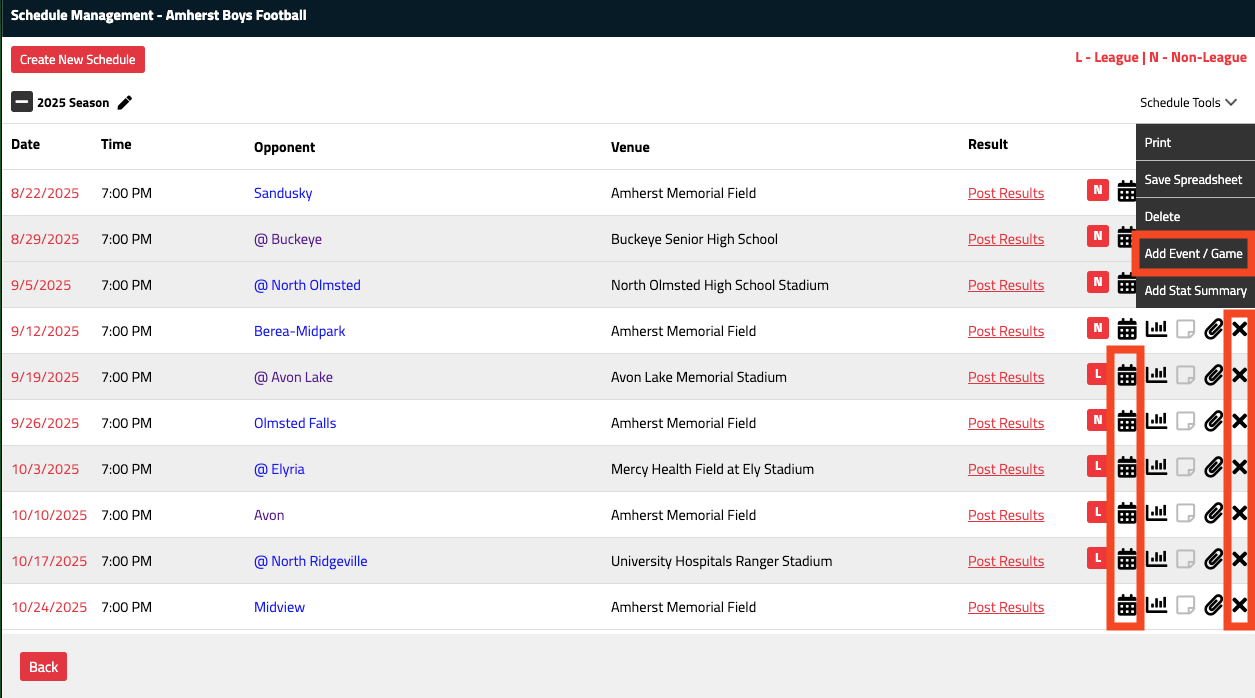
This allows you to add an event, modify an existing event, and delete an event.
To add an event, click "Schedule Tools " in the top right, then click "Add Event/Game."
To modify an event, click the Modify button next to the event.
To delete an event, click the Delete button next to the event.
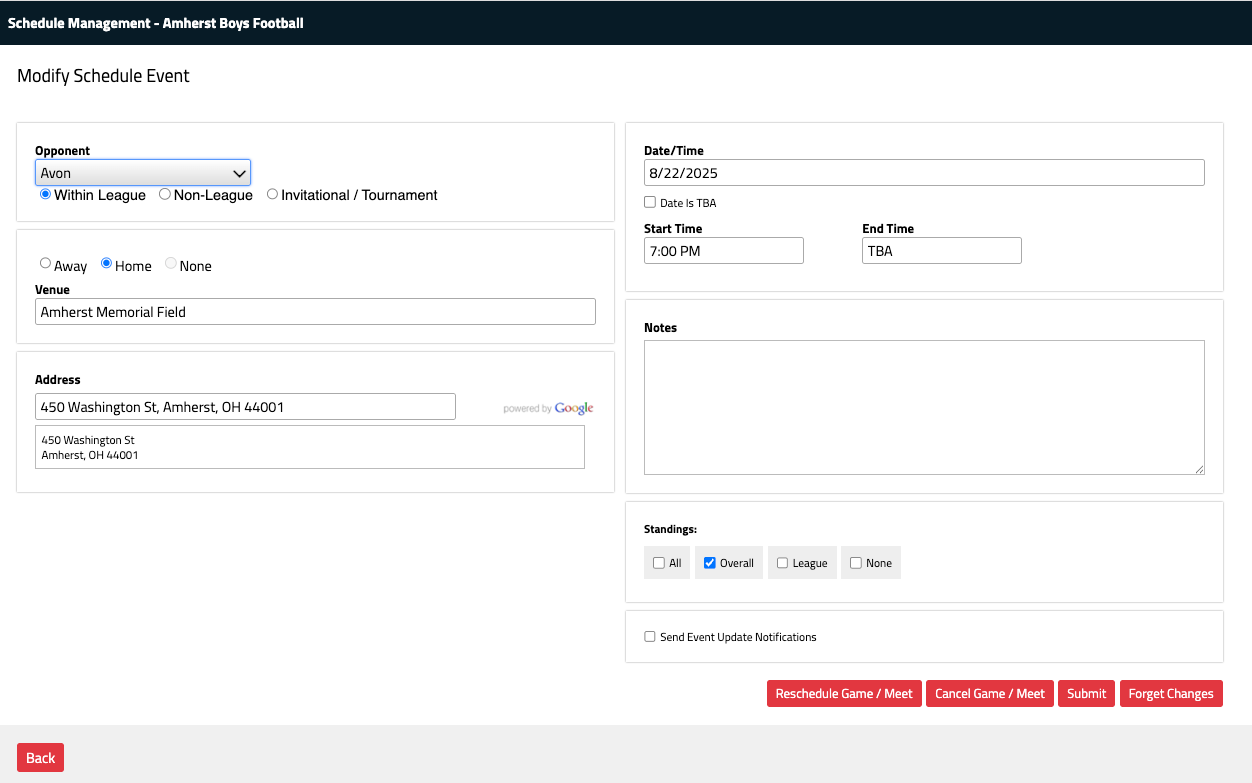
If you selected "Add" or "Modify" an event, a new window appears.
You can change the opponent, venue, date/time. If you are updating an event
closer to the date/time, check off the event notifications box
to send updates to fans of both teams.
Click Submit to Save. The event was updated for both schools' teams.
Update Score
If you have opted into notifications, you will receive an email reminding you to update
the score for your team's events. This notification will include a direct link to update the score
for the event.
Update Scores
Make sure you are logged in.
From the scores page, find and select the event to update the score.
Click the "Menu" button (if on mobile) and select "Update Score."
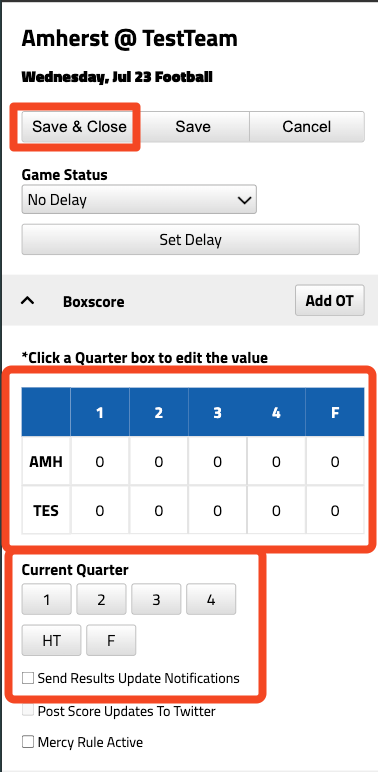
Tap the quarter you wish to add to / modify. Click the period to update the quarter. You may send notifications for those signed up for notifications and are a fan. When done, all changes on this screen require you to click save at the top.
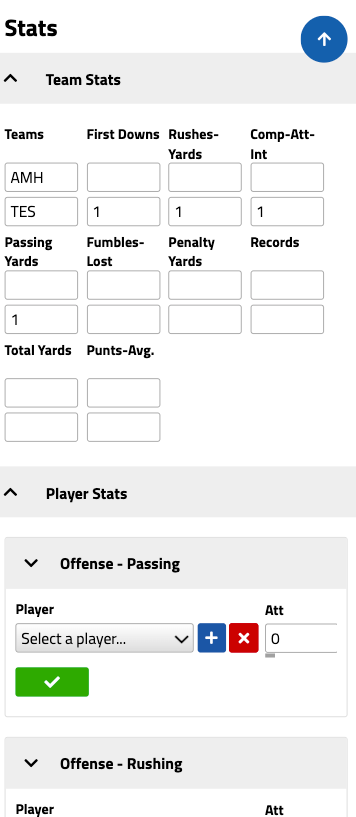
You may also update stats directly from the update scores page.
To submit a stats select team or personal stats. Click into and tab through the fields as necessary.
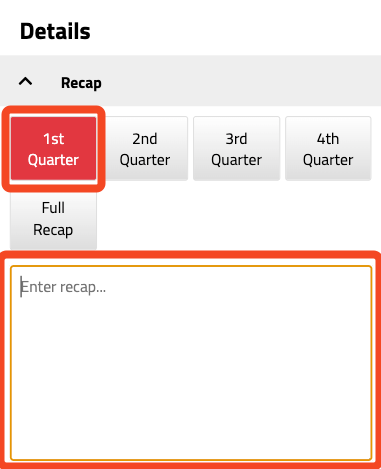
You may also include a recap of any game highlights.
To submit a recap, click the period you wish for it to cover and input your recap. Any changes will be
reflected on the site almost immediately.
Post Commentary
Select the event from the Scores page.
Click "Menu."
Click "Post Commentary."
Tap the text field to enter your commentary about the game. You can either type or use voice to text if your phone allows it.
Click Post to save. This can be done at multiple times throughout the game to highlight key plays and keep fans informed of what's going on during the game.
Update Stats
Note: If you have opted into notifications, you will receive either an email reminding
you to update stats for your team's events. This notification will include a direct link to
update the stats.
Click link in email notification. This will open the event in your phone's browser.
If you are not already logged in, you will be prompted to do so.
You will be taken to the page to update stats for the particular event.
This page is accessible from the event page as well (update stats button).
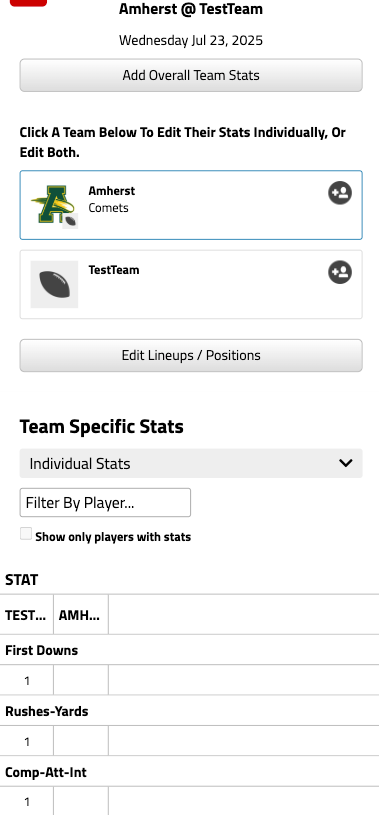
There is an option to enter overall team stats or individual stats.
Use the option that your newspaper prefers.
For team stats, put your cursor in the field to enter stats and tab over as necessary.
For individual stats, click on the individual stats button to select the stat category or select ALL.
Click on the team name to enter stats for the Home Team. By default, the Away team is shown first.
Put your cursor in the field to enter stats and tab over as necessary.
Be sure to save your entries by clicking "Submit Stats."
Add Roster
From team page, click "Roster."
Click the gear icon above the team logo and select "Edit Roster."
Put your cursor in the first field and add the information. You can tab over to the next field.
Click Add. You will see the team member's information display. Continue adding your team members.
At the top of the page, click the "Head Coach" option to add the name of the head coach.
You can go back and edit a team member's information and add their photos if desired.
MaxPreps Export & Import
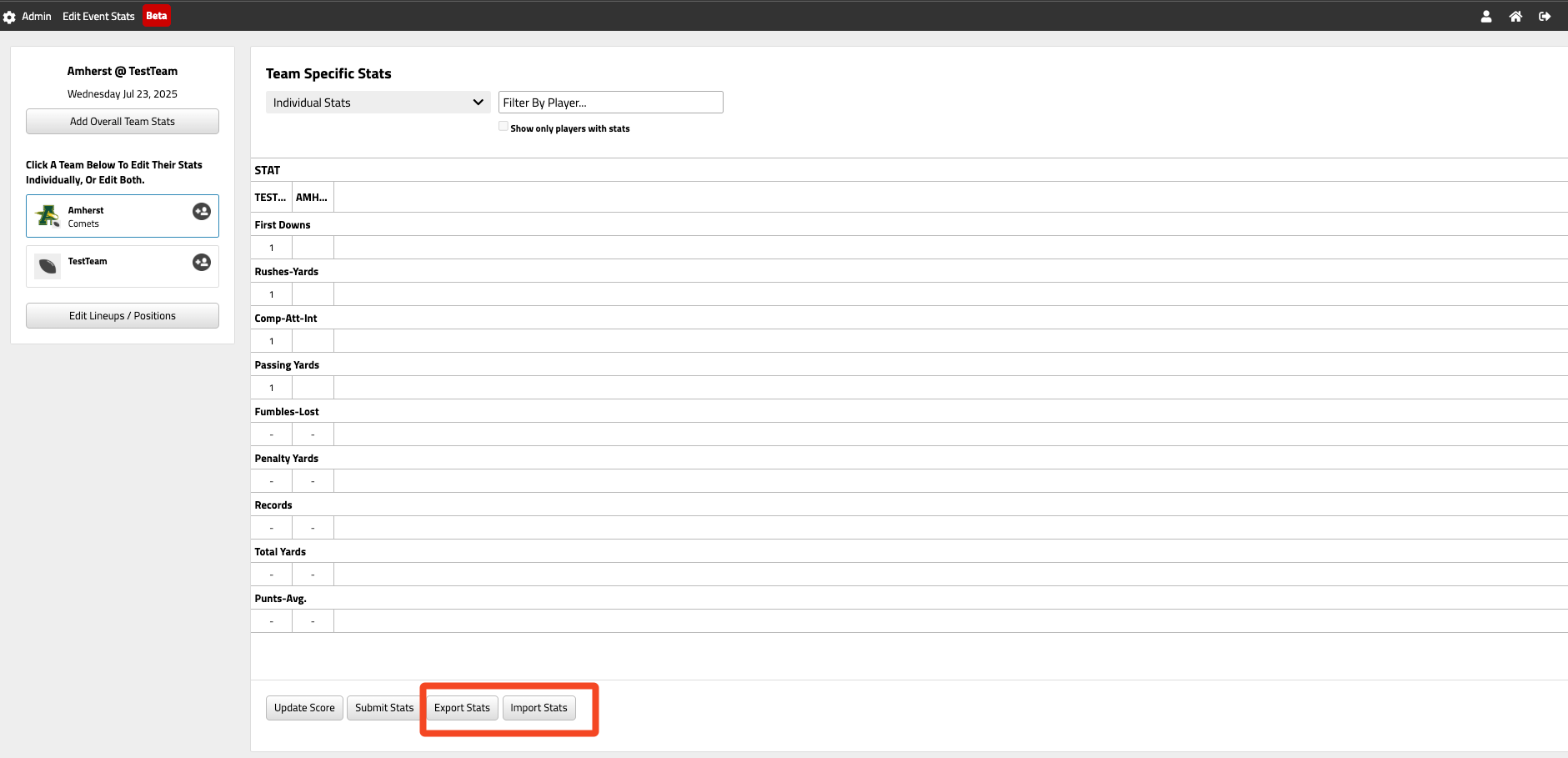
From the Edit Stats Page per event, there are now buttons available to export or import stats for players.
Export
Click Export Stats which opens a text file.
Save this file to your computer so it can be uploaded to MaxPreps
Import
Click the Import Stats button.
It will confirm the team that you are exporting for.




 " in the top right, then click "Add Event/Game."